Dual Boot Windows 7 and Ubuntu 12.04 (Precise Pangolin)
This brief and simple tutorial is going to show you how to easily dual boot Windows 7 and Ubuntu 12.04. Now, the only reason you would want to do this is that you have only one computer and want to run both Ubuntu and Windows on it. This tutorial assumes that you already have Windows 7 installed and that your computer have enough free storage space to install Ubuntu on it. Since most Windows installations occupy the whole hard disk drive, the first thing we’re going to do is shrink the disk drive and make room to install Ubuntu. This is easy and if you follow the guide, you’ll be able to do it as well. Another thing you may want to do is backup your information on the machine before starting the process.
Objectives:
- Download Ubuntu 12.04
- Dual boot Windows 7 and Ubuntu 12.04 (Precise Pangolin)
- Enjoy!
First of All
To get started, logon to Windows 7 and click ‘Start –> then right-click ‘Computer’ and select‘Manage’.
- You Can Download Ubuntu from this direct link here
- Then burn it to a CD
To get started, logon to Windows 7 and click ‘Start –> then right-click ‘Computer’ and select‘Manage’.

Next, select ‘Disk Management’ and right-click the local disk (C:) then click ‘Shrink Volume’

Here, you can accept the default value or adjust it to your needs. When ready click ‘Shrink’
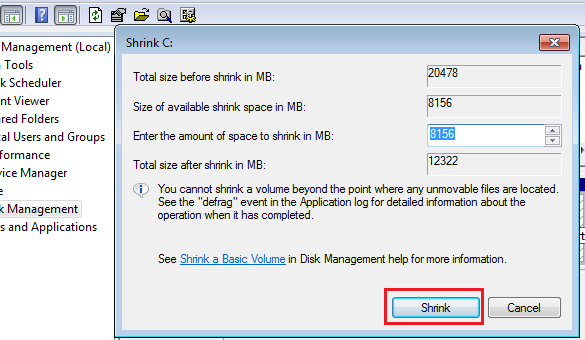
After shrinking the drive, restart your computer while the Ubuntu CD/DVD is in it. When prompted, boot from the CD/DVD.
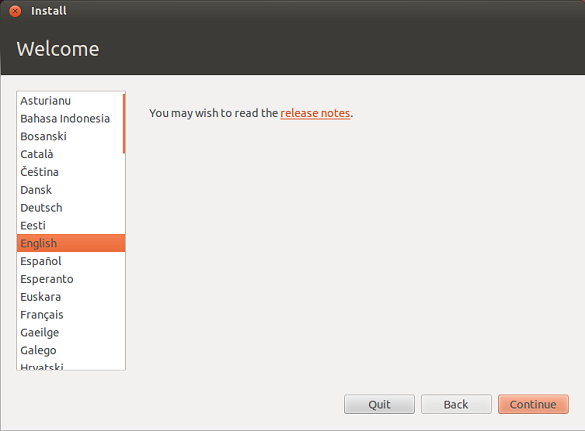
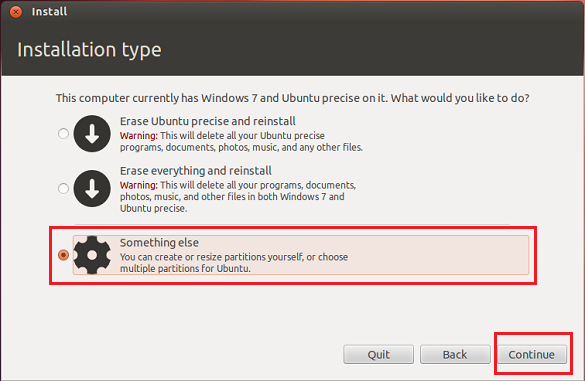
Next, choose the option highlighted below (Something else) and click ‘Continue’
Then highlight the free space and click ‘Add’ to create a swap space.

Next, specify the swap amount to create. 500 to 1000 MB is a fair amount. Don’t forget to chooseswap area. Click Ok to close the window.
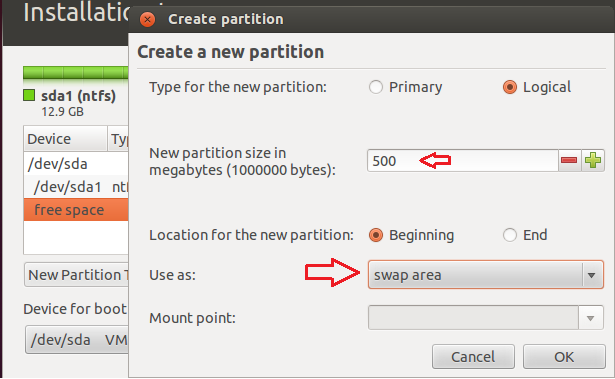
Next, click ‘Add’ again to create Ubuntu partition and accept all the free space available. Make sure to select the slash ( / ) as the mount point.

Next, choose the filesystem ext4 to install Ubuntu on and click ‘Install Now’

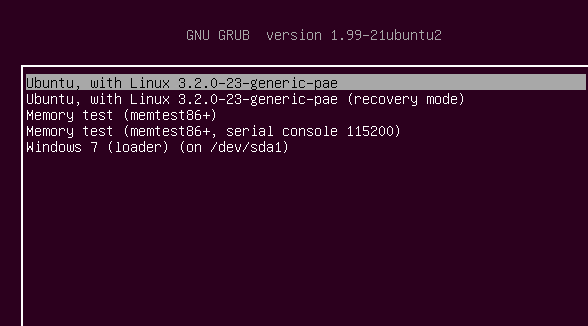
Follow the wizard until you’re done. When you’re done, restart and boot from either Ubuntu or Windows.



ليست هناك تعليقات:
إرسال تعليق